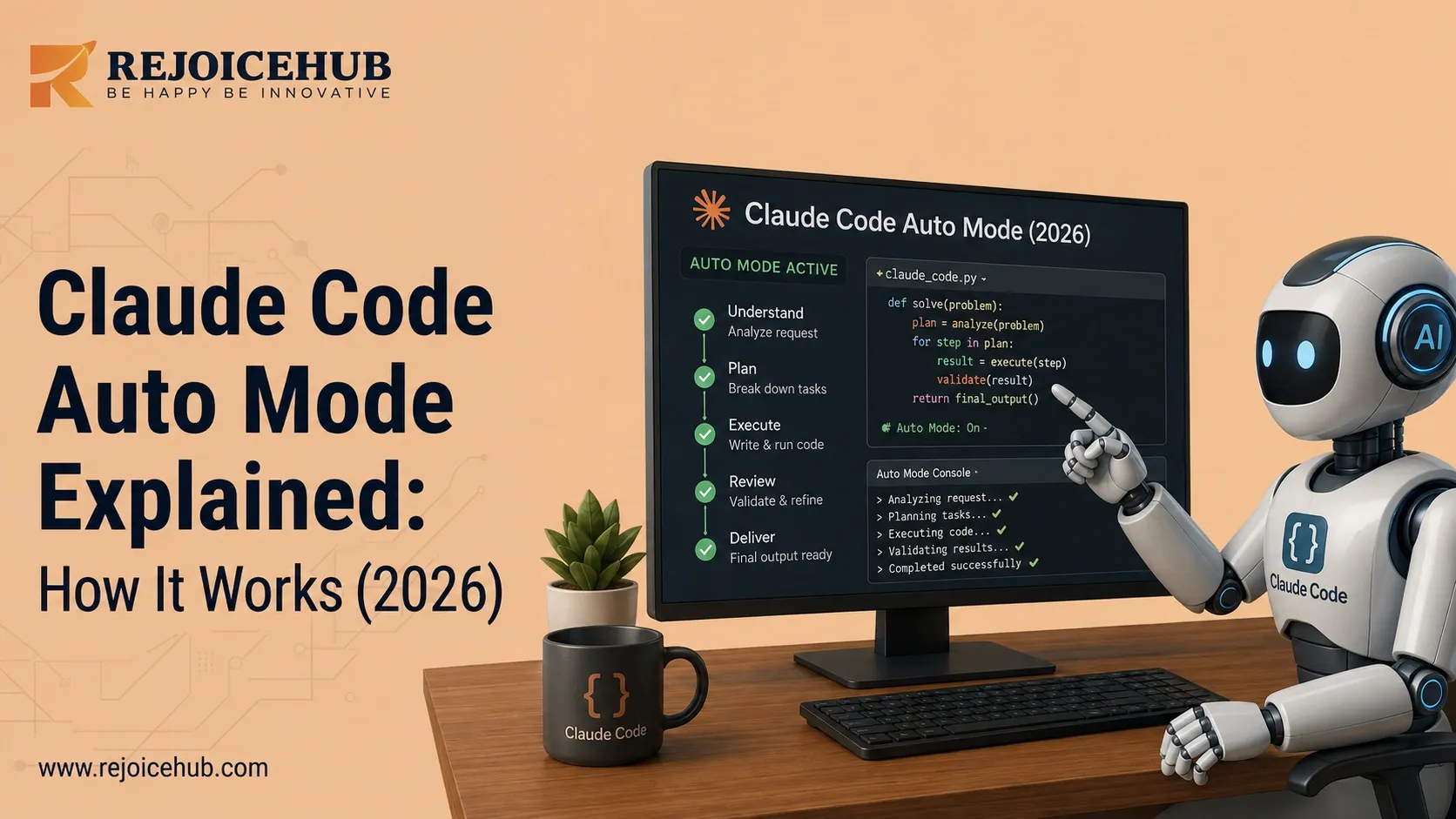
Claude Code is able to perform many powerful actions such as editing files, executing commands, and working over large code repositories, but requiring the assistant to pause to get permission to perform each action can be time-consuming. Claude Code Auto Mode is a new permission mode from Anthropic that allows Claude to perform more actions with fewer interruptions by allowing Claude to act on its own, while a background safety classifier evaluates each action to ensure it is safe to proceed.
Beginning on August 14, 2026, Auto Mode will be the default permission mode for new Claude Code sessions on Pro, Max, and Team plans, which means that understanding it is critical to being able to use Claude Code effectively as part of your agentic coding workflow in 2026.
This guide covers what Auto Mode actually does, how the classifier decides what to block, how it compares to manual approvals and --dangerously-skip-permissions and when your team should (and shouldn't) rely on it.
Key Takeaways
- Auto Mode is a middle ground between manual approval prompts and skipping permissions entirely.
- A separate classifier model reviews each action before execution not a static allow/deny list.
- Repeated blocked actions automatically fall back to manual approval prompts.
- Auto Mode is becoming the default for new Pro, Max, and Team sessions from August 14, 2026.
- It reduces risk but does not eliminate it sensitive infrastructure still needs human review.
What Is Claude Code Auto Mode?
Claude Code Auto Mode is a permission mode of Claude that allows it to perform file editing operations, executions of commands, and network requests without permission for each individual operation, but with a classifier model double-checking each operation for safety before executing it. It is a middle ground between Claude Code's default permission level and the much more dangerous --dangerously-skip-permissions flag.
Anthropic announced that they have created Auto Mode, since the default behavior of Claude Code to pause for permission after almost every file write or shell command is "safe but not conducive to a truly agentic workflow." Some developers have worked around the permission system, which Anthropic warns can expose teams to the kind of dangerous, cascading agent risks that occur if Claude hallucinates an error message.
What does Claude Code Auto Mode do?
In practical terms, Auto Mode:
- Reduces repetitive permission prompts during a coding session
- Allows longer-running, less-supervised coding tasks
- Routes riskier actions (shell commands, network calls, non-trivial file operations) through a classifier before execution
- Blocks or redirects actions that look destructive, escalate beyond the original request, or target unrecognized infrastructure
- Falls back to manual approval prompts if the classifier blocks the same session repeatedly (three consecutive blocks, or twenty total, triggers the fallback)
This is not hypothetical; Anthropic's engineering team has seen these kinds of incidents happen on production systems before and have built Auto Mode's classifier layer to guard against the same risks and best practices around agent security that shape how enterprises deploy autonomous agents: models deleting remote git branches from a confused prompt, leaking an engineer's GitHub auth token into a compute cluster, or attempting a destructive migration on a production database.
How Does Claude Code Auto Mode Work?
Auto Mode is built around a four-step decision loop. Claude suggests an action to take, then a classifier model scores the suggestion according to several safety criteria. If the suggestion is safe, it is taken; if not, it is blocked or revised. This loop happens for every tool call in real time while you interact with Claude.
Step 1 — Claude proposes an action
This may be editing a file, executing a shell command, making a network connection, or accessing some resource within the context of the project. Actions that are read-only or edits in your working directory are automatically approved in Auto Mode and never sent to the classifier.
Step 2 — The classifier evaluates it
Everything else (Bash commands, network operations, writing to file systems outside your working directory) is sent to a classifier model (Claude Sonnet 5 by default) for evaluation. The classifier reads the conversation transcript and the candidate action, and asks a more fine-grained question than a simple blocklist ever could: did the user actually ask for this specific operation on these particular targets, or does it resemble a sandbox escape attempt triggered by hostile content Claude encountered while reading files or the web?
Step 3 — Safe actions proceed
If the action does not go beyond what you request, and is not targeting some unrecognized infrastructure or otherwise inspired by hostile content Claude encountered while reading files or the web, it will proceed without notifying you.
Step 4 — Risky actions are blocked
Actions the classifier flags as risky are blocked, and Claude is told why so it can try a different approach. Common blocked categories include:
- Downloading and piping code directly into execution (curl | bash)
- Sending sensitive data to external endpoints
- Production deploys and database migrations
- Mass deletion on cloud storage
- Granting IAM or repository permissions
- Force pushes and destructive git resets
Featured-snippet answer: Claude Code Auto Mode works in four steps Claude proposes an action, a safety classifier evaluates it, safe actions run automatically, and risky actions are blocked or redirected back to Claude for a safer approach.
Accelerate Your Workflows with Custom AI
Book a free consultation session with RejoiceHub. We'll map out a tailored automation roadmap for your company.
Claude Code Auto Mode vs Manual Permissions vs Skip Permissions
Auto Mode, default (manual) permissions, and --dangerously-skip-permissions are three points on a continuum, similar to the trade-offs engineering teams weigh when they compare Claude Code against other coding agents: trust vs. control.
Default mode carefully considers every action, Auto Mode trusts the user and lets them set up a classifier that makes decisions for it, but skip-permissions removes this level of security, leaving the workflow completely untrusted.
-
Auto Mode vs default permission mode
In default, human-in-the-loop mode, Claude pauses for approval on nearly every file write and command, which is safest and best for particularly sensitive or high-stakes operations.
Auto Mode keeps the security of the classifier but makes the process much smoother, better for larger or more involved tasks like refactors or test generation that benefit from a hands-off approach.
-
Auto Mode vs --dangerously-skip-permissions
Bypassing permissions makes the system fundamentally insecure, as it renders the classifier ineffective by executing all tools called immediately and without classification. Anthropic strongly advises against using Auto Mode for extended work and only allows --dangerously-skip-permissions in properly sandboxed execution environments, as it provides no protection against injections or accidental misuse.
| Mode | Prompts | Safety layer | Best for |
|---|---|---|---|
| Default (Manual) | Frequent | Full manual review | Sensitive, high-control work |
| Auto Mode | Reduced | Background classifier | Long-running, agentic tasks |
| Skip / Bypass Permissions | None | Minimal (circuit breakers only) | Isolated sandboxes and containers |
Common mistake: Teams sometimes treat Auto Mode and bypass permissions as interchangeable "hands-off" settings. They aren't. Auto Mode keeps an active safety check on every non-trivial action; bypass mode removes that check entirely and should never run against production systems or unsandboxed environments.
How to Enable Claude Code Auto Mode
You can enable Auto Mode from the CLI, VS Code, JetBrains, the desktop app, or claude.ai the mode is available once your account, plan, and model meet Anthropic's requirements.
CLI
Press Shift+Tab to cycle through permission modes during a session. Once your account meets Auto Mode's requirements, auto appears in that cycle alongside default, acceptEdits, and `plan. You can also start a session directly in Auto Mode with the --permission-mode auto flag, or set it as part of your automated developer workflow routines as a persistent default in ~/.claude/settings.json.
Desktop / VS Code
In the desktop app, use the mode selector next to the send box in the Code tab. In the VS Code extension, click the mode indicator at the bottom of the prompt box, or set claudeCode.initialPermissionMode in your extension settings.
Current availability (updated August 2026)
- Pro, Max, Team: Auto Mode is becoming the default permission mode for new sessions starting August 14, 2026. You can still switch modes at any time.
- Enterprise: Available by default; organization administrators can disable it org-wide through managed settings.
- Anthropic API and Claude Platform on AWS: Supported with Claude Opus 4.6+, Sonnet 4.6+, or Fable 5.
When Should You Use Claude Code Auto Mode?
Auto Mode is best applied to long-scope development tasks where approval from users would otherwise be a huge hindrance, and should be used sparingly or avoided entirely when dealing with production systems, critical credentials, or other systems where operations should not be performed without extensive manual review.
Good use cases
- Large, multi-file refactoring tasks
- Automated test generation across a codebase
- Documentation updates and cleanup
- Exploratory codebase analysis and maintenance
- Long-running development sessions where you want to walk away and check back later
Anthropic specifically positions Auto Mode for exactly this kind of longer-running work, where frequent approval interruptions would otherwise cut into a developer's flow and productivity.
When to be cautious
Keep tighter oversight or stay in default mode for:
- Production infrastructure changes and deploys
- Sensitive credentials, secrets, and IAM permissions
- Financial systems and anything touching customer payment data
- Destructive database operations
- Work against untrusted repositories or external systems
Expert insight: Even with the classifier active, Auto Mode reduces risk, it doesn't eliminate it. Teams running AI coding agents at scale should pair Auto Mode with code review discipline, branch protections, and least-privilege credentials, not treat it as a substitute for them.
If your team is scaling agentic coding workflows and wants those guardrails built in from day one, RejoiceHub's AI agent development team can help you design a secure rollout plan.
Does Claude Code Auto Mode Automatically Select the Best Model?
No Claude Code Auto Mode does not choose the best model for the task. Auto Mode controls permission and execution: does an action automatically run or require review. It has nothing to do with which Claude model handles your coding request.
These are two separate systems:
- Auto Mode = permission automation (should this action run without asking you?)
- Model selection = which Claude model (Sonnet, Opus, etc.) processes your request
Interestingly, the classifier that determines Auto Mode's decisions does have some degree of model selection built into it by default, it runs Claude Sonnet 5 regardless of what model is being used for coding, while using an Opus model for certain configurations. This is best understood as an internal implementation detail of the safety layer, similar to how agent harnesses work, and has nothing to do with selecting the "best" model for your coding tasks automatically don't conflate the two processes.
Benefits and Limitations of Claude Code Auto Mode
Auto Mode's core trade-off is speed and flow versus a small amount of residual risk that a human reviewer would otherwise catch. Understanding both sides helps you decide where it fits in your workflow.
Benefits
- Fewer interruptions during long coding sessions
- Better support for genuinely agentic, multi-step workflows
- Faster iteration cycles on refactors, tests, and documentation
- Less repetitive manual approval clicking
- A meaningfully safer alternative to bypassing permissions outright
Limitations
- Not completely risk-free Anthropic is explicit that Auto Mode reduces but doesn't eliminate risk
- The classifier can occasionally block legitimate, benign actions, requiring a manual retry
- Some genuinely risky edge cases can still pass through
- Classifier checks add a small amount of extra latency and token overhead on API-billed accounts
- Sensitive workflows production, credentials, financial systems still warrant human review regardless of mode
| Benefit | Limitation |
|---|---|
| Fewer prompts, faster iteration | Occasional false positives on benign actions |
| Classifier catches destructive actions | Some risky edge cases can still slip through |
| Safer than bypassing permissions | Added latency/token cost on classifier checks |
| Automatic fallback after repeated blocks | Not a substitute for code review on sensitive work |
For teams that want to deploy AI code generation in production, it's critical to pair Auto Mode with a thorough review process, not the other way around (see our guide on how to review AI-generated code for more details).
Conclusion
Claude Code Auto Mode reduces the permission friction of long agentic coding sessions, retaining the benefit of a safety classifier to double-check each risky action before executing. It provides a middle ground between requiring constant manual approval of every model action and granting the model carte blanche permission to act on one's behalf.
As Auto Mode becomes the default selection for new Pro, Max, and Team subscriptions beginning on 2026-08-14, understanding how these permissions work and what requires manual confirmation is quickly becoming an essential skill for anyone working with Claude's coding tools. Auto Mode represents a paradigm shift in how developers can work with agentic code assistants, accelerating development while still maintaining critical safety guards.
For teams looking to develop secure AI agents or seeking assistance with automating their development processes, RejoiceHub's AI agent development services or scheduling a discovery call can help potential clients explore how RejoiceHub's expertise might help them accelerate their AI-powered development initiatives.
Frequently Asked Questions
1. What is Claude Code Auto Mode?
Claude Code Auto Mode is a permission mode that lets Claude execute coding actions file edits, commands, network requests without asking for approval on every step. A separate classifier model reviews each action in the background and blocks anything that looks destructive, escalatory, or targeted at unrecognized infrastructure before it runs.
2. What does Claude Code Auto Mode do differently from default mode?
Default mode pauses for approval on nearly every file write and command. Auto Mode automates that approval for routine, safe actions while still routing riskier ones like shell commands or external network calls through a classifier, cutting down interruptions without removing the safety check entirely.
3. Is Claude Code Auto Mode the same as --dangerously-skip-permissions?
No. Skipping permissions removes the approval mechanism completely, with no active safety check on tool calls. Auto Mode keeps a classifier actively reviewing risky actions, making it a meaningfully safer option for long-running tasks outside a fully isolated sandbox.
4. Does Claude Code Auto Mode automatically pick the best AI model?
No. Auto Mode governs permission and execution behavior, not model selection. Which Claude model handles your coding task is a separate setting; Auto Mode's classifier runs on its own model in the background, but that doesn't route your actual coding work to "the best" model automatically.
5. How do I enable Auto Mode in Claude Code?
Press Shift+Tab in the CLI to cycle to Auto Mode once your account meets the requirements, or select it from the mode selector in the desktop app or VS Code extension. You can also set it as a persistent default in your Claude Code settings file.
6. What happens if Auto Mode keeps blocking my actions?
If the classifier blocks the same session three times in a row, or twenty times total, Auto Mode automatically falls back to manual approval prompts for the rest of the session. This is a built-in circuit breaker, not a bug; it usually means the classifier lacks context about your infrastructure.
7. Is Claude Code Auto Mode safe for production environments?
Auto Mode reduces risk compared to manual mode's fatigue and bypass mode's lack of safeguards, but it doesn't eliminate risk entirely. Anthropic recommends extra caution and often manual review for production infrastructure, credentials, financial systems, and destructive database operations, even with Auto Mode active.