
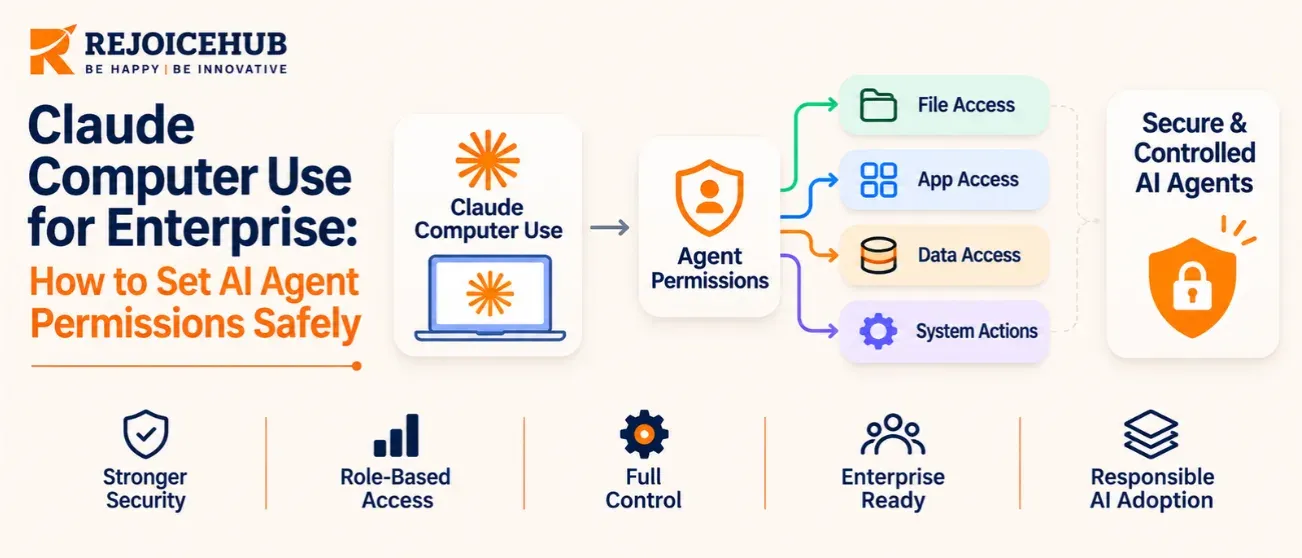
Claude computer use for enterprise lets Claude operate approved desktop apps on an employee's computer. It is in beta on Team and Enterprise plans and off by default. Owners switch it on, Enterprise admins limit it by role, and app lists and device policies set the boundaries. Grant the least access that works.
Anthropic now offers computer use to Team and Enterprise organizations in beta, and a safe setup starts with who gets access and which apps stay off limits. This guide covers every control admins have today, what those controls do not cover, and a rollout plan for US teams. Companies still drafting an AI strategy should settle these rules before anyone clicks Turn on.
What Is Claude Computer Use?
Computer use lets Claude see a person's screen and operate apps with clicks, typing, and scrolling. It works through the Claude Desktop app on macOS 14 or later and on Windows (Source: Claude Help Center, "Set up computer use for Team and Enterprise plans," November 2026).
Think of it as a very fast intern at a shared keyboard. It can finish a multi-app task, but it only sees what is on screen and can be fooled by what it reads there.
Anthropic's help article says screen interaction is slower than connectors and complex tasks sometimes need a second try. Use it for apps that have no connector or API.
Is Computer Use Available to Enterprise Teams Now?
Yes, in beta, with a gradual rollout. Some organizations may not see the setting yet (Source: Claude Help Center, November 2026).
| Date | Event |
|---|---|
| November 20, 2026 | Beta begins for Team and Enterprise organizations |
| December 1, 2026 | Unified Claude experience turns on by default for Team organizations, unless an Owner selects "Keep disabled" first. Computer use stays off until enabled separately |
| February 1, 2027 | The separate chat and Cowork experience is retired |
Data sourced from Data Studios (citing Anthropic release notes), November 20, 2026. Last updated: November 2026.
Two requirements to know before you plan:
- The "Chat and Cowork unified" capability must be on.
- Computer use is not available in separate Cowork tasks or in Claude Code.
Some regulated setups cannot use it at all. The help article lists HIPAA-ready configurations, Zero Data Retention for Claude Code, customer-managed encryption keys, and FERPA or K-12 settings as excluded.
Who Controls the Switch?
Only an Owner or Primary Owner can turn computer use on. They do it under Organization settings, then Capabilities. The setting is off by default (Source: Claude Help Center, November 2026).
Enterprise Plans: Role-Based Access
Enterprise admins can clear the roles that should not have access before they click Turn on. Built-in roles (User, Admin, Owner, Primary Owner) get access once it is enabled. To exclude one person, set their role to Custom and wait about 15 minutes.
Custom roles need the Chat and Cowork unified capability. A role set to "All capabilities" must first change to "Only selected."
Team Plans: All or Nothing
Team plans have no custom roles, so the setting applies to every user. If you want a smaller pilot group on Team, rely on app lists and device policies instead.
Turning It Off
Turning access off can take about an hour, sometimes longer, to reach each person's Claude Desktop. Plan for that delay in an incident.
| Control | Team | Enterprise |
|---|---|---|
| Default state | Off | Off |
| Who can enable | Owner or Primary Owner | Owner or Primary Owner |
| Restrict by role | No custom roles | Yes, through custom roles |
| App allow or block lists | Yes | Yes |
| Device policy (MDM key) | Yes | Yes |
Data sourced from Claude Help Center, "Set up computer use for Team and Enterprise plans." Last updated: November 2026.
What Are the Four Permission Layers?
Safe setup stacks four layers. Each one catches what the layer above it misses.
- Organization switch. Owners decide whether the feature exists at all.
- Role access. Enterprise admins decide which roles can use it.
- App lists. Admins decide which apps Claude may touch.
- User approval and device policy. Each person approves every app, and IT can force the feature off on specific computers.
Layer 3: App Allow and Block Lists
You have two options (Source: Claude Help Center, November 2026):
- Block these apps denies the listed apps.
- Allow only these apps denies everything not listed.
Users still approve each app on an allow list. An allow list does not grant access by itself.
Start with allow only. A block list protects only against the apps you thought of. An allow list protects against the ones you forgot.
Three practical details from the help article:
- On Mac, apps are identified by bundle ID, such as com.microsoft.Excel. On Windows, use the executable file name or a Microsoft Store AUMID.
- Typed IDs are not validated, so a typo silently fails to match.
- The lists are sent to users' computers and Claude Desktop does not display them. Keep confidential app names out of the list.
Layer 4: Device Policy
Admins can set the computerUseEnabled key to false through MDM to turn the feature off on a computer. It needs Claude Desktop 5.1231.0 or later and must be deployed at the computer level, not the user level.
Anthropic is direct about the limit. The key is not a security lock against someone who can change the app or computer settings. MDM also cannot turn computer use on, because users must enable their own switch and approve apps.
On macOS, you can pre-set Accessibility and Screen Recording permissions with a PPPC profile for com.anthropic.claudefordesktop. Denying either one breaks computer use.
What Do the Controls Not Cover?
App lists and the MDM key leave real gaps. Anthropic's help article names them, and most teams miss them.
| Not covered by app lists | Why it matters |
|---|---|
| Claude in Chrome and the built-in browser | Web apps can be reached outside your list. Use the browser's own allowlist and blocklist |
| Claude Code and desktop extensions | They have separate permission systems |
| Websites and browser extensions | A denied app's web version may still be reachable |
| Remote desktops and virtual machines | The list sees the local app, not what runs inside it |
| Text copied from a denied app | Data can move through the clipboard |
| Windows notifications | Message content can appear on screen |
Data sourced from Claude Help Center, "Set up computer use for Team and Enterprise plans." Last updated: November 2026.
A second gap is indirect launches. Anthropic's Cowork article notes that clicking a link in an approved email app can open Chrome even without Claude permission for Chrome. Anthropic can prevent Claude from seeing the Chrome window but cannot stop the link from opening.
A third gap is recordings. Recordings made with "Record a skill" capture every app on screen, including denied ones.
What Are the Biggest Risks?
The biggest risk is that there is no sandbox between Claude and the apps it controls. Anthropic's help article says on-screen content can trigger unintended actions.
No Folder Limits
Computer use is not limited to connected folders. Folder restrictions and "Read only" settings do not apply to it. If a person approves a file manager, Claude can see what that person can see.
Screenshots Hold Sensitive Data
Screenshots may contain personal or confidential information. Anthropic's automated action-review check can see the latest screenshot, and Anthropic may keep a copy in its record of that check. Data handling falls under the Commercial Terms and the Data Processing Addendum.
Prompt Injection
Prompt injection hides instructions in content an agent reads, such as an email, web page, or document. Anthropic says its system scans for signs of injection during computer use, but also warns that attacks keep evolving and safeguards are not perfect.
Security teams are watching the numbers. A Google study of the Common Crawl repository found malicious prompt injection attempts rose 32% between November 2025 and February 2026 (Source: Sophos, "Operating inside the lethal trifecta," citing a Google study published April 2026).
The same Sophos post says human red-teamers achieved a 100% bypass rate against 12 defenses tested in one academic study (Source: Sophos, citing Nasr et al.). Treat model-level defenses as one layer, not the wall.
The Lethal Trifecta
Security researcher Simon Willison named the dangerous mix: an agent that can access private data, process untrusted content, and communicate externally. Computer use can do all three on one desktop.
Sophos recommends the Agents Rule of Two. An agent should have at most two of three properties: processing untrusted input, accessing sensitive systems, and changing state externally.
Apply that to your allow list. If Claude may read email (untrusted) and a finance system (sensitive), do not also let it send messages or submit payments without a human approving each step.
Which Claude Surface Should Do Which Job?
Use the narrowest surface that can do the task. Computer use is the last resort, not the first.
| Task | Best surface | Permission control |
|---|---|---|
| App has a connector or API | Connector | Connector scopes and OAuth access |
| Work inside a website | Claude in Chrome | Site allowlist and blocklist, role permission |
| Code, files, and shell work | Claude Code | Allow, ask, and deny rules, managed settings |
| Legacy desktop app with no API | Computer use | App lists, role access, device policy |
Data sourced from Claude Help Center and Claude Code documentation. Last updated: November 2026.
Claude in Chrome Controls
Admins configure Claude in Chrome with an Owner or Primary Owner account. The allowlist names sites Claude may access. The blocklist names sites it should never access, regardless of other settings. Anthropic recommends starting with a restrictive allowlist and expanding over time.
On Team plans the extension is enabled by default. On Enterprise it is on unless disabled. Enterprise admins can also grant or withhold Claude in Chrome per role, separate from computer use (Source: Claude Help Center, "Claude in Chrome admin controls").
Claude Code Permission Rules
Claude Code evaluates rules in a fixed order: deny, then ask, then allow. The first match decides, and a broad deny rule cannot be overridden by a narrower allow rule (Source: Claude Code documentation, "Configure permissions").
Managed settings let an organization enforce policy so developers cannot override it. The documentation recommends setting permissions.disableBypassPermissionsMode to "disable" there.
{
  "permissions": {
    "deny": ["Read(./.env)", "Read(./secrets/**)"],
    "ask": ["Bash(git push *)"],
    "disableBypassPermissionsMode": "disable"
  }
}
One caution from the same documentation: a Bash deny rule is not a security boundary, because it matches the command text Claude writes. For filesystem and network limits that hold, use sandboxing.
How Should a US Enterprise Roll It Out?
Roll out in small stages and expand only when the logs and reviews look clean. DevOps teams already run this playbook for new infrastructure, and DevOps consulting can help with monitoring and endpoint rules.
- Classify your apps. Sort every app into three groups: safe for agents, human-only, and never. Payment, payroll, and admin consoles usually land in the last two.
- Pick a pilot group. Enterprise admins can use a custom role with 10 to 25 people. Team admins can limit exposure with an allow list.
- Write the allow list first. Include only the apps the pilot needs. Test that every typed ID matches.
- Set the device policy. Deploy the MDM key and macOS permission profiles at the computer level.
- Require approval for risky steps. Sending messages, moving money, and changing access rights need a human click.
- Add network and endpoint monitoring. Sophos suggests starting egress monitoring in logging-only mode to build a baseline.
- Review weekly. Check what people approved, which tasks failed, and which apps people asked for.
Remember that Anthropic's help article does not describe computer-use-specific audit logging. Build your review process from the controls you do have, including MDM reports and network logs.
Timeline to Aim For
- This week: inventory apps, pick a pilot group, write the allow list.
- This month: run the pilot, deploy device policies, add approval rules.
- This quarter: review incidents, widen access by role, and revisit the allow list.
What Mistakes Do Teams Make First?
The most common mistake is turning the feature on for everyone on day one. Broad access first and cleanup after the first incident is a pattern security teams know well from earlier tools.
- Relying on a block list. New apps appear weekly, and block lists miss them.
- Assuming folder settings apply. They do not apply to computer use.
- Forgetting the browser. App lists do not cover Claude in Chrome or websites.
- Putting secrets in the list. Lists are sent to user computers, and Anthropic advises against including confidential app names.
- Treating MDM as a lock. Anthropic says it is not one.
- Skipping the regulated-data check. HIPAA-ready and other excluded setups cannot enable it.
If a custom or legacy app needs a proper API instead of screen control, RejoiceHub can scope that work. A free AI assessment is a low-risk way to see which workflows need agents and which need a connector.
Conclusion
Claude computer use for enterprise is useful where no connector exists, but it runs without a sandbox and sees whatever is on screen. Start with the organization switch off, then add roles, an allow list, device policies, and human approval in that order. Widen access only after a clean pilot.
Frequently Asked Questions
1. What is Claude computer use for enterprise?
It is a beta feature on Team and Enterprise plans that lets Claude operate approved apps on an employee's computer through Claude Desktop. It is off by default. An Owner or Primary Owner must turn it on.
2. Who can enable computer use in my organization?
Only an Owner or Primary Owner can enable it, under Organization settings and Capabilities. Enterprise admins can then limit it by role. Team plans have no custom roles, so the setting applies to everyone.
3. Can I limit which apps Claude can use?
Yes. Admins on both plans can set an allow list or a block list. An allow list denies everything not named. Users still approve each allowed app.
4. Does computer use work in Claude Code?
No. Computer use is not available in separate Cowork tasks or in Claude Code. Claude Code has its own permission rules, with deny, ask, and allow settings and managed policies.
5. Is there a sandbox around computer use?
No. Anthropic states there is no sandbox between Claude and user applications, and folder limits do not apply. Use narrow app lists, human approval, and monitoring to reduce the blast radius.
6. Can MDM block computer use on company laptops?
Yes, partly. Set computerUseEnabled to false at the computer level with Claude Desktop 5.1231.0 or later. Anthropic says it is not a security lock, and it does not cover Claude in Chrome or Claude Code.
7. How long does it take to turn computer use off?
About an hour, and sometimes longer, for the change to reach each user's Claude Desktop. For urgent cases, combine the organization switch with MDM on the affected computers.
8. Are trading and crypto apps blocked?
Anthropic's Cowork article says investment and trading platforms and cryptocurrency apps are blocked by default, and that these guardrails are not absolute. Add finance apps to your own block list or leave them off your allow list.
9. Can Claude computer use handle HIPAA or regulated data?
HIPAA-ready, Zero Data Retention for Claude Code, customer-managed encryption keys, and FERPA or K-12 settings are listed as excluded from computer use. Check your configuration with your compliance team before any pilot.
10. What should I do first?
Inventory your apps and sort them into safe, human-only, and never. Write an allow list for a small pilot group, deploy device policies, and require human approval for any step that sends data or moves money.
